Wellnify Participant FAQ & Support Guide
Date: January 30, 2026
1. The Purpose
Why are we using the Wellnify app?
Wellnify is a community engagement app used by Healthier Texas to support healthier habits across communities. The goal is simple: help people move more, learn more, and feel more connected through small, achievable actions.
The app uses light gamification — such as points and badges — to make participation motivating and engaging.
What does the Wellnify app offer?
Wellnify offers a variety of short, accessible wellness activities you can complete at your own pace, including:
- Simple activities like walking, stretching, or breathing exercises
- Educational wellness content
- Interactive challenges, including optional Augmented Reality (AR) activities that count exercise reps
As you participate, you earn Experience Points (XP) and badges that recognize your effort and consistency.
2. Downloading the App
How do I download the app?
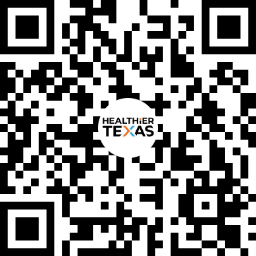
Scan the QR code provided by Healthier Texas, choose your community, create your account, and download the app from the App Store or Google Play.
Why isn’t my app downloading?
Download speed can vary depending on your internet connection. The app includes interactive features that may take slightly longer to download than simpler apps.
Why can’t I download the app on my device?
To ensure the best experience:
- iOS devices must be running iOS 17 or newer
- Android devices must be running Android 13 or newer
These requirements support features such as Augmented Reality activities & Step tracking.
3. Activities & The Schedule
Do I have to follow the daily quest exactly?
No. The daily quest is meant to provide suggestions and help you explore the app. You’re encouraged to participate in activities that fit your interests and schedule.
Any participation counts — there’s no requirement to complete everything.
4. Activity Tracking & Device Syncing
How does Wellnify track my activity?
Wellnify tracks activity through your phone or supported wearable devices using:
- Apple Health (for iPhone users)
- Google Health Connect (for Android users)
If your device syncs to one of these platforms, your activity can automatically sync into Wellnify.
Can I sync devices outside of Apple and Android?
Yes — as long as your device or app connects to Apple Health or Google Health Connect. Many popular wearables and fitness apps can sync to these platforms, allowing data to flow into Wellnify automatically.
I use Fitbit to track my steps. Will that sync?
Android users:
Yes. Fitbit can connect directly to Google Health Connect. Once connected, your Fitbit steps will sync through Health Connect into Wellnify automatically.
iPhone users:
Fitbit does not connect directly to Apple Health. Because of this limitation between platforms, Fitbit steps cannot automatically sync into Wellnify on iPhone at this time.
I don’t always carry my phone. Will my steps still count?
Yes. As long as your wearable device syncs to Apple Health or Google Health Connect, your steps will count even if your phone isn’t with you during the activity.
Can I manually enter steps?
No. Steps are tracked automatically through Apple Health or Google Health Connect, and there is no manual step entry.
This helps ensure accuracy and consistency across participants. If you don’t often carry your phone, we recommend using a wearable that syncs through one of the supported platforms.
I track meals using MyFitnessPal. Can that sync?
At this time, nutrition and meal tracking data does not sync into Wellnify. Wellnify’s integrations focus on steps. You can still use MyFitnessPal alongside Wellnify, but meal data will not appear in the app.
5. Augmented Reality (AR)
What is Augmented Reality (AR)?
Some activities use your phone’s camera to count exercise reps, such as squats or high knees. AR helps track movement automatically so you can focus on form and participation.
Will all activities use AR?
No. Many activities are self-reported and do not use your camera. Activities that include AR will clearly show a “Launch with AR” option.
Why aren’t all my reps being counted?
For best results:
- Make sure the camera view is clear
- Ensure no one else is in the frame
- Position your phone so your full movement is visible
AR works best when it can focus only on you.
Is my AR video recorded or stored?
No. Videos are not stored by the app. After completing an AR activity, you may choose to save or share the video. Once that action is completed, the video is deleted from the app.
6. Points, Badges & Leaderboards
What does XP mean?
XP (Experience Points) are earned by completing activities in the app. XP helps recognize participation and unlock badges — it does not measure fitness level or performance.
How do I find my badges?
Tap the Profile icon and select Badges to view what you’ve earned.
How do I find the leaderboards?
Tap the Leaderboard icon in the navigation bar to view available leaderboards for active challenges.
7. Feed & Notifications
What is the Feed?
The Feed is where Healthier Texas and program administrators share updates, wellness tips, challenge reminders, and community highlights.
Will I receive notifications?
Yes. You may receive push notifications for important updates, new challenges, or announcements shared in the Feed.
Who can post in the Feed?
Only authorized administrators have the ability to post in the community Feed.
8. Friends & Social Features
How do I add a friend?
Go to the Friends section, tap Add Friends, search for a username or first name/last name, and send a request.
Can I challenge a friend?
Yes. Once a friend accepts your request, you can create friendly challenges within the app.
9. Explore Section
What is the Explore section?
The Explore section organizes all activities and content by Mind,Body,and Spirit allowing you to choose what interests you most.
How do I search for content?
Tap Mind, Body or Spirit, then scroll or use the search bar to find activities by keywords such as Cardio, Yoga, or HIIT.
Do I earn XP in Explore?
Yes. All activities completed in the Explore section earn XP, badges, and count toward applicable leaderboards.
10. Support & Troubleshooting
The app isn’t loading or is acting unexpectedly.
Try closing and reopening the app, checking for updates, or restarting your device. If the issue continues, contact support.
My activity or points didn’t update.
There can occasionally be a short delay. If your data does not update after reopening the app, please reach out to support for help.
How does this help Healthier Texas communities?
Participation data is shared only in anonymous, aggregated form. This helps Healthier Texas understand engagement trends and improve future wellness programming without identifying individual participants.
Stay Connected
We use social media to share resources, tools, and information to help you, your family, and your friends live healthy lives. It’s also a great way to join and connect with a growing network of Texans committed to making living healthy easier in our great state!